
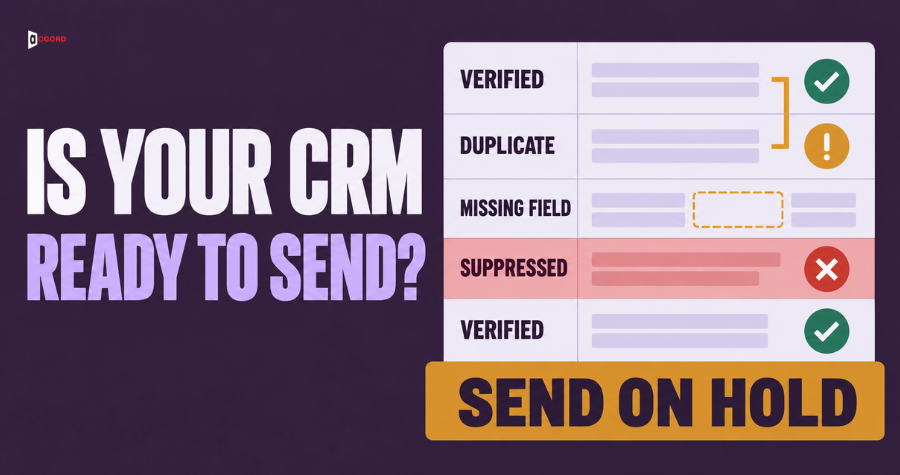
Before every outbound send to a new or changed list, pull a random sample of 100 records from the list and run twelve pass-or-fail checks. The checks fall into three groups: can you reach this person, is this the right person at the right company, and is it safe and allowed to send. If the sample passes, send. If one or two checks fail, fix the cause and sample again. If any zero-tolerance check fails, such as a current customer or a suppressed address on the list, stop the send. Plan 30 to 45 minutes for your first review (an estimate), and less once the steps are familiar. It is smaller than a CRM cleanup project and more useful for one job: deciding whether this list should go out today. The rest of this guide explains each check, gives a starting limit for each one, and shows how to record the decision so the next send is faster.
Why check the CRM before an outbound send and not after?
An outbound send shows your data to the buyer. A wrong job title becomes an email that opens with a role the person left a year ago. A duplicate record becomes two emails to one person. A customer left on the list becomes a cold message to someone who pays you. Every flaw that stays hidden in a CRM becomes visible the moment you press send, and a sent message cannot be recalled.
There is a second reason, and it is about your sending reputation. Google tells senders to keep the spam rate reported in Postmaster Tools (Google's free dashboard for senders) below 0.10% and to avoid ever reaching 0.30% or higher. That is 1 complaint in 1,000 messages as the target and 3 in 1,000 as the line you should never cross. A list full of wrong people produces complaints faster than a list of right people, because people who should never have received the message are the ones most likely to report it. Some of Google's requirements apply only above 5,000 messages a day to Gmail accounts, but the spam-rate target is a sensible limit for a send of any size. The guidance is public in its email sender guidelines.
This guide is a gate for one send. If you want the full cost of dirty records across a sales team, read the real cost of dirty CRM data. The checklist below does not replace a cleanup project. It tells you in under an hour whether a cleanup is needed before this particular list goes out.
What does "ready to send" mean?
A record is ready to send when three questions all have a yes. Can you reach this person at this address? Is this the right person at the right company for the message? Is it safe and allowed to contact this person today? A list is ready when a random sample of its records passes the limits you set for those three questions.
Two words need a clear meaning before you start. The send list is the exact set of records that will receive one campaign, kept as a copy or a filtered view and not the whole CRM, because the CRM may be fine overall while the list is not. A record is one person at one company with one email address, so the same person twice counts as two records and one problem. Write both definitions at the top of your sheet, so the checks mean the same thing to every reviewer.
How do you pull a fair sample of 100 records?
Do not check the first 100 rows. The top of a list is usually the oldest or the best-maintained part, and the problems sit further down. A fair sample is random.
- Export the send list to a spreadsheet.
- Add a column and fill it with the formula
=RAND(). - Sort the sheet by that column and copy the first 100 rows into a new tab.
- Keep the original list unchanged so you can fix it after the review.
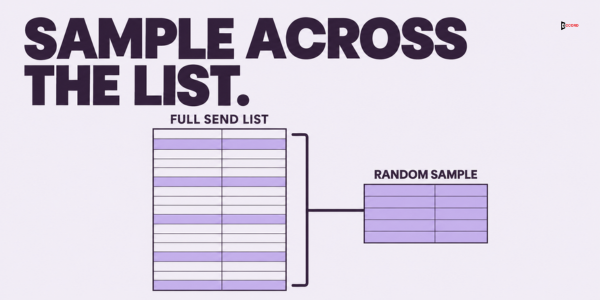
If the list has fewer than 300 records, sample 50 and cut each count limit in the table below in half, rounding down. Zero-tolerance checks stay at zero. If the list mixes sources, for example a purchased file, a tradeshow list and CRM contacts, sample each source separately and give each source its own result. A list with one bad source hides the problem when everything is averaged together.
A sample of 100 is a quick screen and not a statistical proof. If the sample is close to a limit, run a second sample of 100 before you decide.
Group one: can you reach this person?
These four checks protect the delivery side of the send. They are the quickest to run, and most of them can be checked by a tool or a filter.
Check 1. A valid-looking email address is present. Start with the obvious: count records with a blank email, a missing "@", spaces, or a typo in the domain. Anything you find belongs off the send list before another check runs.
Check 2. The address passes verification. Next, run the 100 addresses through your email verification tool and count those marked invalid or risky. Verification tools are not perfect, so treat the result as a screen, and look at the date of the verification too. One vendor estimates that B2B email data goes stale at roughly 2% to 3% a month, so accept only results from the last 30 days (our proposal). A high share of invalid addresses points to an old list or a weak source. A high share of "risky" results on a company domain may point to a catch-all server, which accepts mail for any address and so cannot confirm that the mailbox exists.
Check 3. The address is not a shared mailbox. Addresses such as info@, sales@, support@ and admin@ are read by several people, or by nobody, so a message sent there has no named reader and often ends in a complaint or a quiet delete. Count them. Some small companies only publish a shared address, so decide in advance whether those records belong on this list.
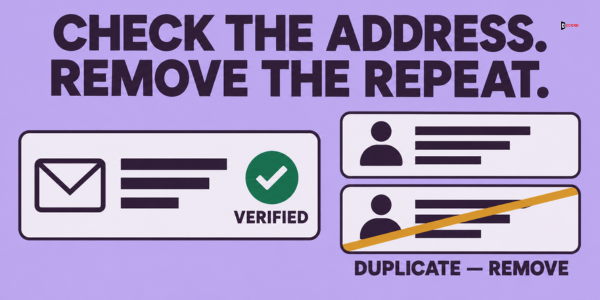
Check 4. Each person appears once. Sort by email address, then again by the combination of name and company, and count the duplicates, including the same person with two addresses. A buyer who gets the same opening line twice learns that nobody is checking the list. If duplicates are common in your CRM, the guide on CRM deduplication rules explains how to decide which record survives.
Group two: is this the right person at the right company?
These four checks protect the relevance of the message. They take longer because some of them need a human to look at a public profile.
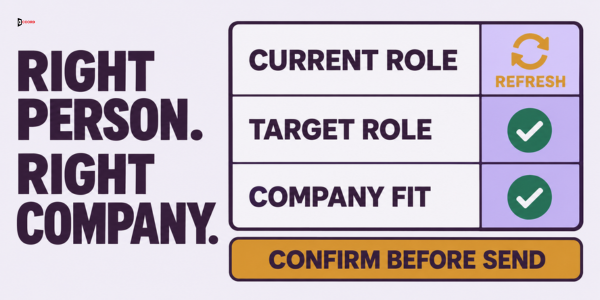
Check 5. The person is still in the role. This is the one check done partly by hand. Pick 10 records out of the 100 and compare each to a public source, such as the person's company page or professional profile, then count how many still hold the title in your CRM. Ten is enough because it takes about 15 minutes. It is a rough screen and not a measurement, but if three or more are out of date, the list has aged and the full 100 need a closer look.
Check 6. The job title fits your target roles. Which three to five roles do you actually want to reach? Write them down, for example "Head of Marketing", "VP Sales" and "Founder", and count the records whose title falls outside that list. A title is not proof of authority, but a list with many interns, assistants and unrelated departments was built from a broad filter.
Check 7. The company fits your written description of the ideal customer. Use your own limits for company size, industry and country. If you cannot state the description in three lines, write it first and run the check after. Then count the records outside it. This check most often shows that a list came from the wrong source.
Check 8. The record is not a customer, an open deal or an active conversation. Match the send list against your customer list, your open opportunities and anyone currently in another sequence. Zero tolerance applies. One current customer in a cold campaign is one too many, and one person receiving two sequences from the same company is a reason to pause the whole send.
Group three: is it safe and allowed to send?
These four checks protect your reputation and your legal position. Check 9 has zero tolerance, like check 8 in the group before it.
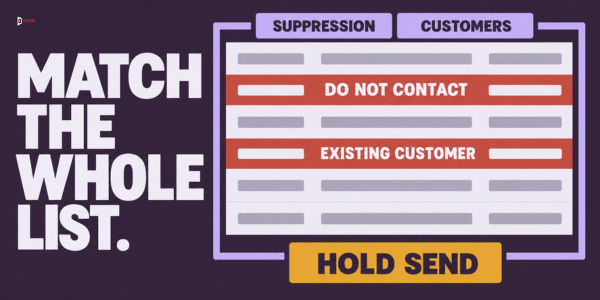
Check 9. Nobody on the list has asked not to be contacted. Match the send list against your suppression list, the do-not-send list that holds unsubscribes, previous hard bounces (permanent delivery failures, such as an address that does not exist), spam complaints and written "do not contact" requests. This is the second zero-tolerance check. A person who asked to stop and then receives another message is the most likely source of a complaint.
Check 10. The source of each record is written down. Can you say where each contact came from: a form, an event, a research tool, a purchased list or a referral? Count the records with no source. Without one, you cannot answer the question "why did I receive this?", and you cannot learn which source produces the best leads. Rules about commercial email differ by country, so check the ones that apply to your sending, including the CAN-SPAM Act in the United States. This guide is not legal advice.
Check 11. Nobody at your company contacted this person recently. Look at the last-contact date. Decide a quiet period, for example 60 days, and count records that anyone inside the company has touched in that time, whether sales, support or marketing. A buyer who hears from three people in a month does not see a team, only noise.
Check 12. The message fields are complete. An empty first name turns "Hi Dana," into "Hi ,", and that mistake is visible in the first second. Count records where a field the email uses is empty or looks wrong: first name, company name, and any custom line. Check the fields as the email will show them, in your sending tool's preview, not only in the CRM.
What limits should each check use?
The table gives a starting limit for a sample of 100. These limits are our proposals, not industry standards. Change them to fit your market, your tolerance for risk and the size of your list, and write the new limit next to the old one so the team can see why it changed.
| # | Check | Pass if (out of 100) | If it fails |
|---|---|---|---|
| 1 | Valid-looking email present | 98 or more | Remove blanks and typos; re-sample |
| 2 | Address passes verification (last 30 days) | 95 or more | Re-verify the list; question the source |
| 3 | Not a shared mailbox | At most 5 shared | Remove shared addresses or find a named person |
| 4 | Person appears once | At most 2 duplicates | Merge and remove duplicates |
| 5 | Still in role (10 checked by hand) | 8 or more of 10 | Re-enrich or drop stale records |
| 6 | Title fits target roles | 90 or more | Filter by the role list |
| 7 | Company fits the ideal customer | 90 or more | Filter by size, industry and country |
| 8 | Not a customer or active contact | 0 failures (zero tolerance) | Stop; remove and re-run the match |
| 9 | Not on the suppression list | 0 failures (zero tolerance) | Stop; re-match against all suppressions |
| 10 | Source recorded | 95 or more | Add the source or remove the record |
| 11 | Not contacted in the quiet period | At most 2 | Remove or delay these records |
| 12 | Message fields complete | 98 or more | Fix the fields or remove the record |
What if you only have ten minutes?
Run the checks that can hurt you most, in this order: check 9 (suppression list), check 8 (customers and active contacts), check 2 (verification) and check 12 (message fields). These four need no manual research, and between them they prevent the worst outcomes: a message to someone who asked to stop, a cold email to a customer, a high bounce rate, and a visible "Hi ," in the first line. A ten-minute review is not a substitute for the full twelve, so write "short review" in the log and run the full list the next time.
How do you decide: send, fix or stop?
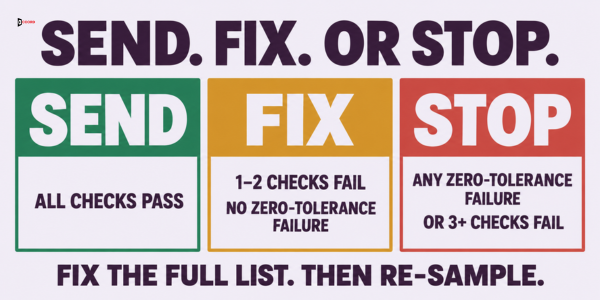
Count how many checks failed, then let the count make the call. When all twelve checks pass, send the full list and note the date and result. When one or two checks fail and neither is a zero-tolerance check, fix the cause in the whole list, not only in the 100 records (for example, refresh the details from a current source), then pull a new random sample of 100 and run only the failed checks again. When any zero-tolerance check fails, or three or more checks fail, stop. Do not send. Review how the list was built before you fix individual records, because three failures in one sample usually mean a source problem.
The reason for sampling again, rather than fixing the 100 and sending, is simple. The 100 records you checked are now clean, and they no longer tell you anything about the rest of the list. A new random sample does.
Fixing the cause matters more than fixing the records. If check 5 fails, the problem is that titles age. A fix that updates the 100 sampled records leaves the same problem in the rest of the list, so refresh the whole list from a current source, or remove the records you cannot confirm.
Who signs off and where do you write it down?
A checklist that nobody owns will be skipped the first busy week. Name three roles, and they can be one person in a small company, as long as the approver is not skipped.
- List builder. Creates the send list and pulls the sample.
- Reviewer. Runs the checks, ideally a different person from the list builder, because people overlook their own mistakes.
- Approver. Reads the result and says send, fix or stop. This is usually the sales leader or the person who owns the meetings number.
Keep one log with one row per send: date, list name, source, list size, sample size, the result of each check, the decision, and the name of the approver. After three or four sends, the log shows which source fails most often and which check catches the most problems, which tells you where to spend cleanup time.
What should you do after the send?
The send itself produces the best data about the list. Use it within two business days, while the details are fresh.
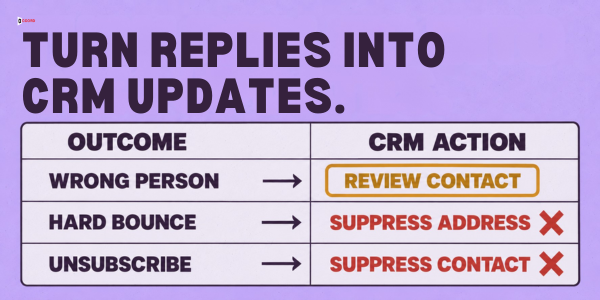
Start with bounces. Record each hard bounce (a permanent delivery failure) against its record and add the address to the suppression list. Replies matter just as much. A note such as "I left this company" or "wrong person" is a data update, so record the new information and fix the record instead of leaving it sitting in an inbox. Unsubscribes and complaints go on the suppression list the same day, with a note of the record's source. Last, compare your sources by bounces and unsubscribes per 100 messages. A source that fails the pre-send checks and also produces the most bounces is one to retire.
This is a check for cold outbound lists. Lifecycle email to customers and subscribers is a different system with different rules.
How do you stop bad data from coming back?
A pre-send review catches problems late. Add three small gates earlier so fewer records fail. Make the source a required field on every form and import, so that check 10 passes by default. Run a duplicate check when a record is created, not only before a send. And set a sunset rule for old records, for example moving anyone with a hard bounce, or with no activity after a long stretch you choose, off the active send lists. A rule that runs by itself every month is worth more than a cleanup that happens once a year.
Imagine: a 1,200-contact list and a 30-minute review
The details of this example are invented. Imagine a 40-person software company that wants to email 1,200 operations leaders at mid-sized companies next Tuesday. The marketing manager pulls a random sample of 100 records and runs the twelve checks.
| Check | Result in the sample | Limit | Outcome |
|---|---|---|---|
| 2. Verification | 91 pass | 95 or more | Fail |
| 5. Still in role (10 by hand) | 6 of 10 | 8 or more | Fail |
| 8. Customer or active contact | 2 found | 0 | Fail, zero tolerance |
| 11. Contacted in last 60 days | 4 found | At most 2 | Fail |
| All other checks | Pass | Pass |
The list stops. The two customers lead the team to run the same match against all 1,200 records, which finds 21 customers or active contacts in total. For simplicity, assume no record falls into more than one group of removals below. The list came from a conference export that was never matched to the customer list. The team asks the event partner for a refreshed file, re-verifies every address and removes 49 that fail verification in the refreshed file, and also removes 60 records that sales contacted in the last two months. They pull a new sample of 100. This time the only failure is two stale titles out of 10, which passes. The send moves from Tuesday to Thursday, with 1,070 records instead of 1,200, and the log records why. Nothing was sent to a customer, and the next conference export gets the customer match before anyone sees it.
Frequently asked questions
How often should we run the pre-send checklist?
Run it before every cold outbound send to a new or changed list, and again before you reuse an old list after a month or more. For a list you add to every week, run it on each new batch, and run it again on the whole list once a month and after any change in the source.
Is a sample of 100 enough for a list of 20,000?
It is enough for a screen, not for proof. If the result is close to a limit, run a second sample of 100 and use the worse result. For a very large list, sample each source separately and check the largest source twice.
Should a bounce limit be part of the checklist?
Bounces belong in the check after the send, because they are a result. Check 2 predicts them. Google does not publish a bounce limit. Several vendor guides suggest keeping hard bounces under roughly 2% to 3%, but those are vendor guidelines and not rules from mailbox providers. Set your own stop rule in your sending tool, for example pausing a campaign if the first batch bounces more than your limit, and write that number into your log.
Next step
If you want a second pair of eyes on a list before it goes out, book a 30-minute working session with the Accord team. Bring one send list and its source, and use the time to run the twelve checks on a sample together.