

Here is how to check sender reputation without paying for a tool. Use Google Postmaster Tools for mail that reaches Gmail, run a blocklist look-up on your sending domain, and read the bounce, reply and unsubscribe numbers in your own sending tool. No single tool shows the whole picture, because each mailbox provider keeps its own record of how people treat your mail. Name one person as owner, give that person 15 minutes a week, and agree on the numbers that mean "pause" before you need them.
What is sender reputation, in plain words?
Sender reputation is the track record that a mailbox provider keeps about you. A mailbox provider is the company that runs the inbox your message is going to, such as Gmail or Outlook. When your message arrives, the provider asks a simple question: do people want mail from this sender? If the past answer is yes, your message has an easy path to the inbox. If the past answer is no, it is more likely to land in spam or be refused.
The provider builds this record from what recipients do. They reply, click "report spam", or leave your list. The provider also watches how many of your messages bounce. A bounce is a message that could not be delivered, often because the address does not exist. Google says plainly that user spam reports can lower your domain's reputation over time.
Two points are easy to miss. First, reputation is not one number. Gmail keeps its own record, Outlook keeps another, and other providers keep theirs. Validity, a company that sells email tools, makes the same point on its sender reputation page: each mailbox provider uses a different mix of factors, so the same campaign can reach the inbox at one provider and the spam folder at another. Second, reputation can fall faster than it recovers. Poor sending behavior can hurt delivery quickly, and recovery time varies with the cause and the provider.
This guide is about cold outreach from a small or mid-sized team. It does not cover newsletters or system emails such as password resets. Accord sells outbound and email services, so we have an interest in this topic. We have tried to keep the advice useful whether or not you ever work with us. Our live B2B email deliverability checklist covers the full setup, how to raise volume slowly and each provider's rules, so this guide does not repeat them.
Is sender reputation about your domain or your IP address?
It is about both, and the split matters for a small team. Your domain is the part after the "@" in your address, such as yourdomain.com. An IP address is a number that identifies the mail server your message leaves from. Google says Gmail tracks volume, feedback and limits per domain and per IP address. Validity gives a simple picture: the domain tells the provider who sent the message, and the IP address tells the provider where it came from.
Now think about where your mail actually leaves from. Most small teams do not run their own mail servers. They send through Google Workspace or Microsoft 365, or through a sending tool that connects to one of them. In that case the IP addresses belong to the provider. Google's own setup page for Workspace tells you to add include:_spf.google.com to your domain records, and that line names Google's own mail servers. Microsoft's documentation describes the IP addresses of its Microsoft 365 servers as Microsoft's own, split into a normal pool and a separate pool for suspected spam.
Google also warns that when several senders share an IP address, what any one of them does affects the reputation of all of them. The page does not say how this applies to each Workspace account, so treat it as a reason to be careful and not as a fact about your setup.
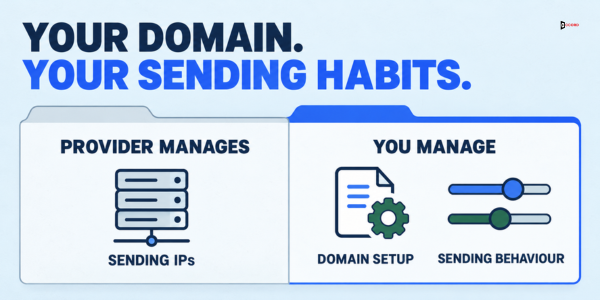
Our reading of these pages is that a small team on Google Workspace or Microsoft 365 has little say over the IP address. What you control is your domain and how your mailboxes behave, so that is where checks and fixes should focus. If you send from your own server or a dedicated IP address, the IP address matters much more.
How to check sender reputation with free tools in October 2026
There are four places to look, plus your own numbers. Each answers a different question, and each has a limit you should know before you trust it. Read them as clues, not verdicts.
Google Postmaster Tools: what Gmail thinks of your domain
Google Postmaster Tools is a free dashboard from Google for people who send mail. You prove you own your domain by adding a short record to your domain settings, known as DNS. DNS is the public address book of the internet, and your domain host or IT person can add the record in a few minutes. After that, the dashboards fill in over the following days.
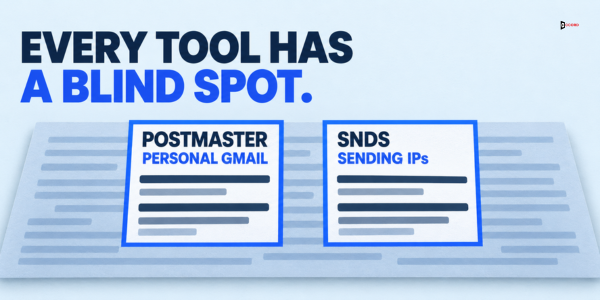
Three limits come straight from Google's Postmaster Tools dashboards help page. The data covers only messages sent to personal Gmail accounts, meaning addresses ending in @gmail.com or @googlemail.com. Many B2B prospects probably use a business address instead, so for cold outreach you may see only a slice of your sending. The dashboards may also leave out days when your volume is low, to protect Gmail users, and Google does not publish a minimum. Last, the data is not live. Google says updates usually arrive within 24 hours but can take longer.
The most useful dashboard for a small team is the spam rate. Google defines it as the percent of your messages that were delivered to an engaged recipient's inbox and then marked as spam by that recipient. The dashboard counts DKIM-authenticated mail sent to Gmail accounts. Google's email sender guidelines say to keep the spam rate below 0.10% and to avoid ever reaching 0.30% or higher.
Be careful with the maths. In Google's terms, 0.10% means about 1 spam report for every 1,000 such inbox messages. It does not mean 1 in every 1,000 messages that you sent in total. Mail that went straight to spam, mail to addresses outside Gmail and mail without a DKIM signature are not in that count. So you cannot rebuild the figure by dividing complaints by the "sent" total in your sending tool, and Google notes that third-party spam reports will usually differ from its dashboard. Keep it apart from the hard bounce rate in your sending tool, which is a different measure: bounces out of messages sent from one mailbox.
The second dashboard to know is Compliance status. It marks each Gmail sender requirement as Compliant, Needs work or No data found. These include signing your mail properly and, for the largest senders, one-click unsubscribe. The dashboard uses a rolling average over several days, so Google says a fix can take up to seven days to show.
Here is the part that changed. Google's help page still lists Domain Reputation and IP Reputation dashboards that rate you Bad, Low, Medium or High. A separate Google notice says those two dashboards will be retired, and gives three reasons: the data is not easy to act on, changes in your behavior show up slowly, and reputation is only one of many factors in whether mail is delivered. The notice gives no date. Your account may still show the ratings or may not, so do not build a routine that depends on them. The spam rate and Compliance status are the safer anchors.
Microsoft: SNDS, the junk report program and the Outlook rules
Microsoft runs two free services for Outlook.com consumer mail. Smart Network Data Services, called SNDS, shows how Outlook.com views the health of sending IP addresses. The Junk Email Reporting Program, called JMRP, sends you a copy of messages that Outlook.com users mark as junk or phishing, with the headers. This kind of report is called a feedback loop, since it feeds complaints back to the sender. Microsoft says the reports typically arrive within as little as 72 hours.
The catch is in the sign-up. SNDS asks you to request access to "the IPs for which you are responsible". If you send through Google Workspace or Microsoft 365, you do not run those IP addresses, so these services will usually not help you. That is our reading of the sign-up wording.
What does apply to you is Microsoft's sender rule. Microsoft's Outlook postmaster page says that from May 5, 2025, Outlook.com enforces stricter checks on SPF, DKIM and DMARC for domains that send more than 5,000 emails a day. These are three DNS-based checks that help the receiving system confirm a message really comes from the domain it claims. Failing mail goes to the junk folder, and the page says Outlook.com will "shortly" reject it. We could not confirm from that page whether rejection has started. A small cold-email team sends far below 5,000 a day, but passing these checks is cheap and removes one cause.
Blocklist look-ups: has anyone flagged your domain?
A blocklist is a public list of domains and IP addresses that some mail systems use to refuse or flag mail. Spamhaus, a company that publishes blocklists, describes its lists as ones that mail administrators can use to reject a message or accept it and mark it for more filtering. So a listing is a warning, not proof that every inbox blocks you. Each receiving system decides what to do with it.
Spamhaus runs a look-up page where you can type in a domain or an IP address. Do the look-up by hand, once a week, for each domain you send from. Do not rely on a single list. If you find a listing, look for the removal steps that the list's operator publishes. Removal does not fix the cause, so go to the fix section below first.
Validity's Sender Score: useful, but narrow
Validity runs a free look-up at senderscore.org. Validity describes Sender Score as a rating of IP address reputation, and its look-up box accepts an IP address or a domain. On its sender reputation page, Validity reads scores below 70 as a sign that at least one key measure is past what mailbox providers accept, 70 to 80 as a solid grasp of the basics, and over 80 as an excellent reputation.
Treat the score as a second opinion and not as the rating Gmail or Outlook uses. The same page says each mailbox provider uses its own mix of factors. If you send through Google Workspace or Microsoft 365, the score may describe a shared server and not you. A high score with a rising bounce rate in your own tool is still a problem.
What if you send small volumes?
Many cold-email teams send a few hundred messages a day across several mailboxes. At that size, Postmaster Tools may show "No data found" on many days. That does not mean your reputation is good. It means Google has too little to report.
Fall back on what you can see yourself. Your sending tool shows bounces, replies and unsubscribes by mailbox. Next, each week send a representative message from every mailbox to a personal Gmail address and an Outlook address that you own. Representative means the same mailbox, the same sending tool and the same kind of message as your real outreach: a first-step email from your live sequence, with the usual signature, links and tracking settings. A plain note typed by hand from the same mailbox can land somewhere else, so it tells you little about your real sequence. Then check whether the message landed in the inbox, the promotions tab or spam. One test is limited evidence, since your own inbox is not a prospect's inbox. A pattern over several weeks tells you more. Last, read bounce messages when they appear, since many include a code and a short reason. Google lists specific codes, such as 5.7.26 for mail that fails its sender checks, so copy the code into a search before you guess.
What do the signals mean, in plain words?
A high spam rate, a rise in bounces or a new blocklist listing usually point to one of three causes. The first is who you are sending to. A wrong or old list creates bounces and complaints. The second is what you send. Messages that feel irrelevant or misleading create complaints even when the list is right. The third is how you send. A sudden jump in volume, or a missing way to unsubscribe, makes providers cautious.
Read the signals together. Rising bounces with a steady spam rate usually point to the list. A rising spam rate with steady bounces usually points to the message or the audience. Falling replies with nothing else changing may mean mail is landing in spam without any complaint. Treat each of these as a starting guess, then check it against the list and the copy.
Google's sender guidelines tell senders not to mail people who did not sign up and not to buy addresses. For cold outreach that is uncomfortable, because cold means the person did not ask. So the standard to hold is narrow targeting, a clear reason for contact and an easy way to say no. The CRM data quality checklist before an outbound send covers how to test a list before it goes out.
How do you fix a bad reading?
This is how to improve sender reputation without guessing. Slow down first, and do not change everything at once. The steps are in the order we suggest. Providers and tools differ, so recovery time varies and nobody can promise a date.
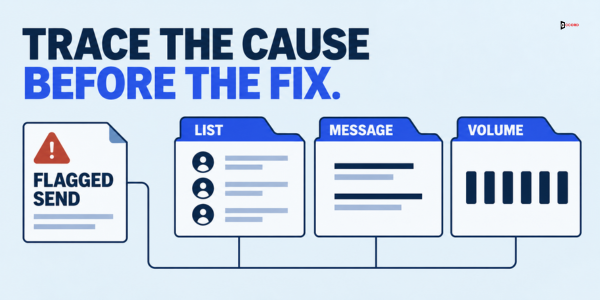
- Stop and slow down. When a number crosses a line, pause cold sending from the affected mailbox or domain. Google's guidance for blocked or delayed mail is to reduce sending volume until errors fall. Pausing also gives you a clean starting point.
- Find the cause before you fix anything. Pull the last send. Which list, which mailbox, which message, which day? Compare the bad mailbox with a healthy one. If only one is bad, the cause is probably what that mailbox sent. If all are bad, look at the shared list or the shared domain.
- Clean the list. Remove addresses that bounced, people who asked to stop, role mailboxes such as info@ and anyone who does not fit your target buyer. Then re-check where the list came from.
- Check your authentication, including alignment. SPF lists the servers allowed to send for your domain. DKIM adds a signature that shows the message was not changed on its way. DMARC tells the receiver what to do when those checks fail. Passing SPF or DKIM is not enough on its own. For DMARC to pass, the domain that passed SPF or DKIM must also match the domain in the visible From address. That match is called alignment, and Google's DMARC help page explains it. A sending tool that signs mail with its own domain can pass DKIM and still fail alignment for your domain. Google says unauthenticated mail might be marked as spam or refused with a 5.7.26 error. Ask whoever manages your domain to confirm that SPF or DKIM passes and aligns with your From domain for every sending tool you use.
- Fix the cause of complaints. People report spam when the message is not for them, when it is hard to leave or when it looks like a trick. Make the unsubscribe link plain and honor it quickly. Narrow the audience. Cut the pitch down to one clear reason for writing. Remove misleading subject lines.
- Rest the mailbox, then restart small. Google advises starting with low volume to engaged users and raising volume gradually. For a paused mailbox, that could mean a lower daily count than before, sent only to your most carefully matched contacts. Raise the count slowly while the numbers stay calm. We do not suggest moving to a new domain to escape a bad reading, because the cause often travels with you.
How long does this take? Three different clocks are easy to mix up, so keep them apart.
- Reporting delay. Google's bulk sender FAQ says spam rates and other Postmaster Tools data are calculated and updated daily. The Compliance status dashboard is slower, because it uses a rolling average and can take up to seven days to show a fix.
- Eligibility for Google's help. The same FAQ applies to bulk senders, meaning those sending more than 5,000 messages a day to Gmail. Their user-reported spam rate must stay below 0.3% for 7 consecutive days to become eligible again for delivery mitigation, which is Google's help for fixing delivery problems. Most small cold-email teams are below that volume, so this clock may not apply to you.
- Reputation recovery. Google's troubleshooting page says to wait up to 7 days after your fixes for the spam rate figure to reach a compliant level. That describes the dashboard figure. It is not a date for when your inbox placement returns, and Google gives no such date. Recovery of the underlying reputation can take longer and varies by cause and provider.
Who should own sender reputation in a small team?
One named person, and not a committee. Sender reputation sits between marketing, sales and IT, so it is often owned by nobody. The list builder cares about volume. The copywriter cares about response. The IT person cares about domain records. Nobody watches the shared result.
Our proposal is to give ownership to the person who runs the sending tool day to day. In many small companies this is a marketing or sales operations person, or the founder. This person does the weekly check, keeps the log, and may pause a mailbox without asking. A short pause usually costs a few days of sending. Waiting while a problem grows can cost more.
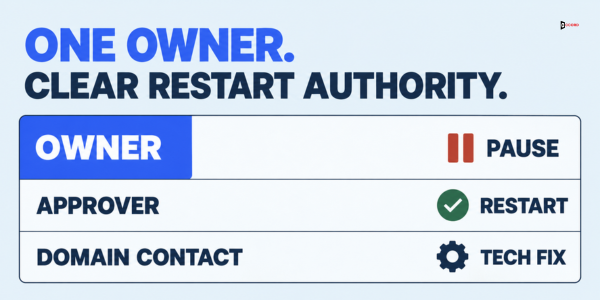
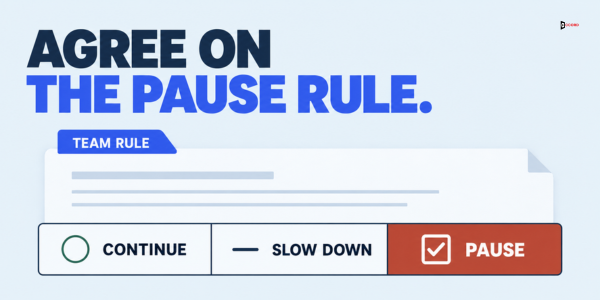
Name two more roles. An approver, usually the sales or marketing lead, decides when to restart and what to change. A domain contact, whoever manages your domain settings, fixes the technical items. In a very small company these can be one person, but write the names down, and add a backup for when the owner is away. Keep one rule: the owner may pause, only the approver may restart, and the log records both. That stops a meeting target from overriding a warning sign.
What does a 15-minute weekly check look like?
Our proposal is a fixed slot, the same day each week, and the same five steps every time. The time per step is an estimate and will vary with your tool.
- Minutes 1 to 4: Postmaster Tools. Open the spam rate and Compliance status for each sending domain. Note the highest spam rate in the last seven days, and write "no data" when that is the case. Check that no requirement says Needs work.
- Minutes 5 to 8: your sending tool. For each mailbox, note the hard bounces (permanent failures), unsubscribes, replies and messages sent. Compare with last week and with the other mailboxes.
- Minutes 9 to 10: blocklist look-up. Type each sending domain into the Spamhaus look-up and write down the result.
- Minutes 11 to 13: test messages. From each mailbox, send a representative message (a first-step email from your live sequence, sent through the same tool) to your own Gmail and Outlook addresses. Note where each one landed.
- Minutes 14 to 15: the log. Add one row per mailbox: date, volume, bounce share, spam rate, test result, blocklist result and the decision (continue, slow down or pause). A log that fits on one screen gets read. After a month it shows which list or mailbox causes trouble.
Which number should trigger a pause?
Providers publish very few hard limits, so these are our proposal. They are starting points, not industry standards. Change them to fit your market, and write the new number next to the old one. Only the 0.10% figure and the 0.30% line come from Google. Our pause line of 0.20% sits below Google's 0.30% on purpose.
| Signal | Where you see it | Slow down at (our proposal) | Pause at (our proposal) |
|---|---|---|---|
| Gmail spam rate | Postmaster Tools | 0.10% or higher on any day with data | 0.20% or higher on any day |
| Hard bounces per mailbox | Sending tool | 2 in 100 messages sent in a week | 3 in 100 messages sent in a week |
| Blocklist listing | Look-up page | Listed on one list | Listed on two or more lists, or a rejection message names a list |
| Test messages | Your own inboxes | One test in spam | Gmail and Outlook tests both in spam two weeks running |
| Angry replies | Reply inbox | 1 in a week | 2 or more in a week |
The two percentages use different bases. The bounce line counts hard bounces out of messages sent from one mailbox. The Gmail spam rate uses Google's own base, described earlier, so do not compare the two or recalculate one from the other. With small volumes, one complaint can move a percentage a lot, so use the rates as a prompt to look and not as a ruling. A pause is cheap. If a number is borderline, pause for a few days and look again.
Imagine: one mailbox, one bad week
The details of this example are invented. Imagine a 14-person software company where two sales reps send cold email from four Google Workspace mailboxes, about 60 messages per mailbox each day. A marketing manager, Dana, owns sender reputation and runs the 15-minute check every Monday.
This Monday, three mailboxes look normal. The fourth shows 11 hard bounces out of 300 messages that week, which is 3.7%. That is past the pause line of 3 in 100. Postmaster Tools shows a spam rate of 0.12% on one day, above the slow-down line of 0.10% but below the pause line. Dana's test message from the fourth mailbox landed in spam at Outlook. The Spamhaus look-up shows nothing.
Dana pauses the fourth mailbox the same morning and tells the sales lead. She traces the bounces to one list, a conference export that nobody verified. She removes every bounced address and every role mailbox, and checks the rest of that list against the CRM. She also confirms that SPF, DKIM and DMARC still pass and align with the From domain.
The sales lead agrees to restart the mailbox after one week at 20 messages a day, only to well-matched contacts. It adds 10 a day each week while the numbers stay under the slow-down lines. Dana writes the cause and the fix in the log. She does not promise a full recovery, and she watches four more Mondays before she calls it settled.
Frequently asked questions
Is there one free tool that shows my full sender reputation?
No. Each mailbox provider keeps its own record, and the free tools show only parts of it. Postmaster Tools covers Gmail, and only for mail sent to personal Gmail accounts. Microsoft's tools suit senders who control their own IP addresses. A blocklist look-up and your own sending numbers fill the gaps, so use two or three together.
What is a good Sender Score?
Validity reads below 70 as a warning, 70 to 80 as solid and over 80 as excellent. Those are Validity's reading of its own score, not a rule from Google or Microsoft. Use the number to spot a change over time, and pair it with your bounce and complaint numbers.
Can I fix a bad sender reputation quickly?
Sometimes the numbers improve in days, and sometimes they take much longer. Recovery depends on the cause and on the provider, so nobody can honestly promise a date. The steady path is to pause, remove the cause, restart at a low volume, and watch the numbers weekly. The live cold email deliverability system post covers the wider approach and warns against cycling through domains.
Next step
If you want a second pair of eyes on your sender reputation checks, ask the Accord team for a 30-minute working session. Bring your sending domains, your sending tool's weekly numbers and one recent bad week, and use the time to set your owner, your pause numbers and your weekly check together.