
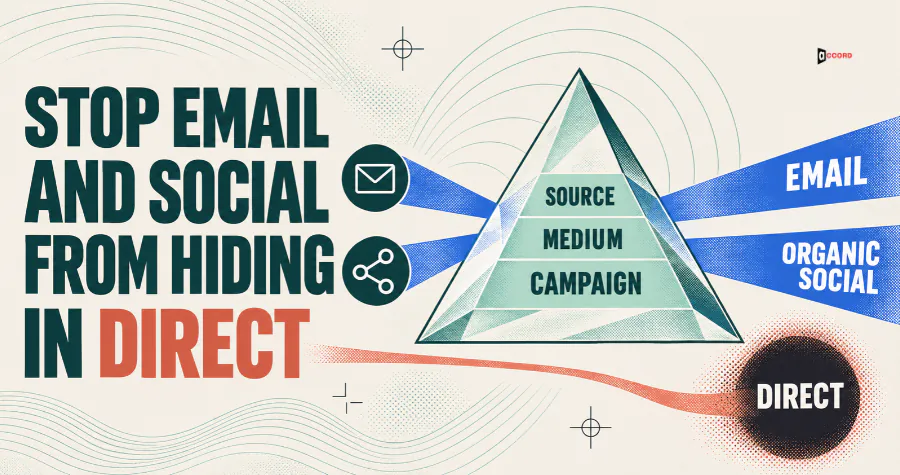
You send a newsletter, post on LinkedIn and message a few prospects. Then you open Google Analytics 4 (GA4, Google's website analytics tool) and the biggest source is "Direct", a label that means almost nothing. The cause is often small: the links you shared carry no tag, so GA4 has nothing to read. This post gives you the UTM tags B2B teams need in plain words: a three-field naming rule you can copy, a tagged link you can adapt, and a five-minute test with a pass line and a fix. It also says which visits tags cannot fix.
The naming rules and the pass lines are Accord's own starting points, not industry standards. The facts about GA4 come from Google's help pages, read on 1 November 2026, and are linked or named where they appear. Google changes its pages and its screens, so check them again before you rely on a detail.
What does Direct mean in GA4, and why do untagged links end up there?
GA4 sorts every visit into a source (where the visitor came from) and a medium (the kind of route, such as email). A visit is called a session. Google defines a session as a period of time during which a user interacts with your site, and by default it ends after 30 minutes of inactivity.
When GA4 finds nothing to read, it records the source as "(direct)" and the medium as "(none)". Google's help page Understand (direct) / (none) traffic says this label means traffic that does not have a clear referral source. It gives four causes. Links that lack UTM parameters are the first. Redirects, such as a move from one site to another or from a secure to a non-secure address, can strip the parameters from the link. URL shorteners can strip referral details as well. The last cause is people who type your address, open it from an offline document such as a PDF or use an ad blocker, a browser add-on that can interfere with the cookies GA4 uses to find where a visit came from.
GA4 then groups sources and mediums into channels. The default channel group is Google's own sorting into buckets such as Direct, Email and Organic Social. Google's Default channel group help page lists the rules. Direct needs the source to be exactly "(direct)" and the medium to be "(not set)" or "(none)". Email needs the source or the medium to match "email", "e-mail", "e_mail" or "e mail". Organic Social, which means unpaid social posts, needs the source to be a known social site or the medium to be one of "social", "social-network", "social-media", "sm", "social network" or "social media". A visit that fits none of the rules goes to "Unassigned".
Two lessons follow. An untagged email link usually lands in Direct. A tagged link with a medium that GA4 does not recognize can land in Unassigned, which hides it just as well. A tag helps only when its words match the rules.
What is a UTM tag, in simple words?
A UTM tag is a short piece of text added to the end of a link. It starts after a question mark, and each piece is a name, an equals sign and a value. Pieces are separated by an ampersand (&). GA4 reads the pieces when the visitor lands and records where the click came from.
Google's help page on URL builders says that when you add parameters to a URL, you should always use three of them: utm_source, utm_medium and utm_campaign. It lists others, including utm_id, utm_term and utm_content. It also warns that missing UTM parameters result in "(not set)" values in reports. This post uses those three fields, which is all the UTM tags B2B teams need to start, and treats the rest as extras.
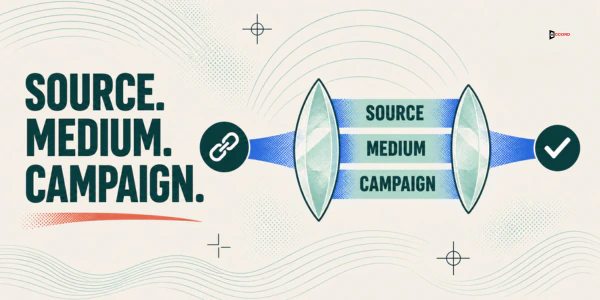
The three fields answer three plain questions. Source: where does the link sit, or which platform is it on? Medium: what kind of route is it? Campaign: what is this link for?
Which visits can UTM tags fix, and which can they not?
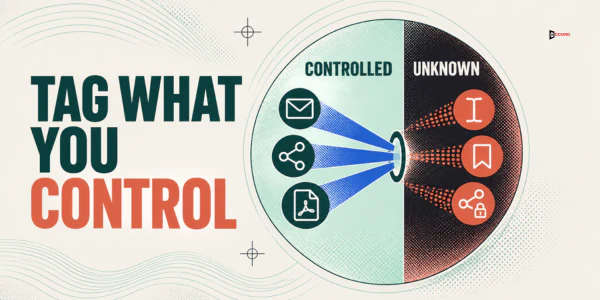
A tag works only on a link that you place and control. It travels with the link wherever the link is clicked. If you did not place the link, or the link carries no tag, a tag cannot help. This table sorts the common cases.
| Where the visit comes from | Can a tag fix it? | What to do |
|---|---|---|
| Links in emails you send, including cold and newsletter emails | Yes | Tag every link in the email, and the link in your signature if it points to your site |
| Links in your own social posts, comments and profiles | Yes | Tag each link, with a different campaign name for each post or series |
| Links in direct messages you write yourself | Yes | Tag the link before you paste it, and add a campaign name that says it is a message |
| Links inside PDFs, decks and one-pagers you send | Yes | Tag the link inside the file before you send the file |
| Links that pass through a redirect or a shortener | Only if the tag survives | Test the final link before you send it, as shown later in this post |
| Someone copies your bare address into a private chat, group or document | No | You cannot tag what you did not place, so ask "How did you hear about us?" |
| Someone types your address or uses a bookmark | No | These visits are Direct by Google's own definition |
| Visitors whose ad blocker interferes with tracking | No | Google's page lists this as a cause of Direct, and a tag does not change it |
Dark social is the name some marketers use for sharing that happens in private places, such as messaging apps and group chats, where no source information travels with the link. We do not give a number for how much of your traffic that is. No primary study is cited here, and the share will differ for every company.
One more case is worth knowing. A tagged link that someone copies from the address bar keeps its tag, because the tag is part of the address. When that person shares it, later clicks may be credited to your original email or post. That is one reason to keep campaign names specific, so you can see which message the traffic is tied to.
Which UTM tags B2B teams should use: a three-field naming rule
The word "convention" only means that everyone on the team writes the same tag the same way. A tag is worth little if one person writes LinkedIn and another writes linkedin. Google's help page says the values are case sensitive, with the example that utm_source=google is different from utm_source=Google. GA4 will show these as two separate rows in your reports.
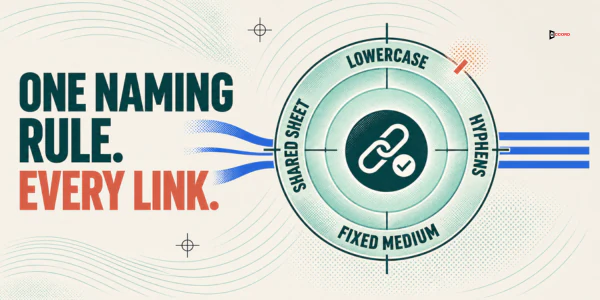
Here is the rule in seven lines. It is short on purpose, so people will follow it.
1. Lowercase only. Every value, every time. This is our rule, and it follows from the case sensitivity that Google describes.
2. Hyphens, no spaces. Write invoice-checklist, not Invoice Checklist. Google's page does not say how spaces are handled, so we avoid them.
3. Source is the place or the platform. Use linkedin, instagram or x for social. For email, use the name of the list or the sending program, such as newsletter or outbound. Google's best-practice list asks for one unique source for each distinct platform.
4. Medium comes from a short fixed list. Pick the medium from the list in the next table and do not invent new ones. Google's list asks for one unique medium for each distinct channel.
5. Campaign is what the link is for, with the month last. Use the pattern topic-yyyy-mm, such as invoice-checklist-2026-11. Put the date at the end so names sort by topic first.
6. Tag only links that point to your site from somewhere else. Do not tag links between your own pages. This is our starting point. Google's pages we read do not cover internal links, so run the test below on your own property if you have doubts.
7. Keep every tag in one shared sheet. Build each link with Google's Campaign URL Builder, which the URL builders page links to, and save it in one shared sheet. Nobody types tags from memory.
The medium list matters most, because GA4 uses it to pick the channel. This table matches the channel rules from Google's Default channel group page, as read on 1 November 2026.
| Where the link sits | Source | Medium | Channel it should land in |
|---|---|---|---|
| Newsletter or any email you send | newsletter or outbound | ||
| LinkedIn post, comment or direct message | social | Organic Social | |
| Instagram or X post | instagram or x | social | Organic Social |
| Paid ad on a social site | linkedin or another platform | paid-social | Paid Social |
| Link placed on a partner's website | the partner's name | referral | Referral |
The paid-social value fits the Paid Social rule on Google's page, which accepts a medium that starts with "paid" together with a source from a list of social sites. If you run Google Ads, Google's help page on manual tagging and auto-tagging says that when both are used together, GA4 uses the auto-tagged values. So ask whoever runs your ads before you add manual tags to those links.
Notice that newsletter appears as a source and not as a medium. A medium of newsletter matches none of the Email rules listed earlier, so GA4 may not file the visit under Email. The test later in this post shows where your own tags land.
What does a tagged link look like?
Start with a plain page address. Here is an invented one: https://www.example.com/guides/invoice-checklist. A tagged version for a newsletter looks like this.
https://www.example.com/guides/invoice-checklist?utm_source=newsletter&utm_medium=email&utm_campaign=invoice-checklist-2026-11The same page shared in a LinkedIn post changes only the source and the medium.
https://www.example.com/guides/invoice-checklist?utm_source=linkedin&utm_medium=social&utm_campaign=invoice-checklist-2026-11The same page sent in a direct message needs a campaign name that tells it apart from the post.
https://www.example.com/guides/invoice-checklist?utm_source=linkedin&utm_medium=social&utm_campaign=invoice-checklist-dm-2026-11The first part of each link, before the question mark, is the page. Everything after it is the tag. In the third link, the campaign name ends in -dm-2026-11, so GA4 will show the message traffic and the post traffic as two campaigns even though both come from LinkedIn.
How do you build and store the links in four steps?
The aim is that two people build the same tag for the same message. Here are the steps.
- Make a sheet with one row for each tagged link. The columns are date, owner, page address, source, medium, campaign and the full tagged link.
- Before you build a link, look in the sheet for the same campaign name. Reuse it if the link belongs to the same topic and month.
- Build the link with Google's Campaign URL Builder. Copy only the finished link into the sheet and into your message.
- Once a month, sort the sheet by source and medium. If you see LinkedIn next to linkedin, or a medium outside the fixed list, fix the sheet and tell the owner.
How do you test one tagged link in five minutes?
Test every new type of link once before you send it to many people. The test has three checks. Each one has a pass line, which is the result that tells you the check worked, and a fix for when it did not.
Check 1: Does the tag survive the click? Open the full tagged link in a private browser window. Wait for the page to finish loading and look at the address bar.
Pass line: the page loads and the address still ends with your utm_ tags. Fix: if the tags are gone, a redirect or a shortener removed them. Google names both as causes. Ask whoever manages your website whether the redirect can keep the part after the question mark, or send the final address instead.
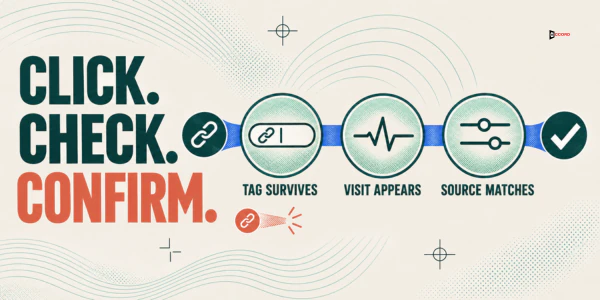
Check 2: Does GA4 see the visit now? Open the Realtime report in GA4 while the page is open in your browser. Google says this report covers the last 30 minutes. Look for your page in the page views.
Pass line: your page appears within a few minutes. Fix: if it does not appear, the GA4 code may be missing on that page, or an ad blocker may be switched on in your test browser. Turn the blocker off and try again. Be aware of one limit. Google says the Realtime card that shows the first user source covers only established users, so a brand-new test visit may not show its source there. Use Realtime to confirm that tracking works, and use the next check to confirm the source.
Check 3: Does the source and channel look right in the report? Wait for the standard reports to catch up. Google's data freshness page says processing can take 24 to 48 hours. Then open Reports, then Acquisition, then Traffic acquisition. The report's default view is Session default channel group. Switch the first column to Session source / medium. Google's Traffic acquisition page points to a separate help article on changing dimensions in detail reports. Find your test row.
Pass line: you see one row such as newsletter / email, written exactly as you tagged it, and the Email channel shows at least the number of sessions you generated. Fix: read the row you do see.
If the row says (direct) / (none), the tag was stripped or a blocker was on, so repeat check 1 and switch blockers off in the test browser. If two rows differ only in capital letters, rewrite the tags in lowercase and update the sheet. If the visit sits in Unassigned, the medium does not fit a channel rule, so change it to one from the fixed list. If a value shows "(not set)", a required field was missing from the link. If no row appears after 48 hours, repeat check 2 and ask whoever manages your GA4 setup.
For your own test visits, use a campaign name that starts with test, such as test-link-check-2026-11. That way you can find them later and keep them out of your real numbers.
How do you know the tags are working on a real send?
After a real send, compare two numbers for the same email. The first is the number of clicks reported by your email program. The second is the number of GA4 sessions for the same campaign name. Divide the second by the first, using the same dates for both.
The two numbers will not match exactly, because a click and a session are counted differently and blockers can stop GA4 from counting a visit. No outside source cited here sets a good ratio. Our starting point is that a ratio below one half is a reason to check the tags first, starting with check 1 above.
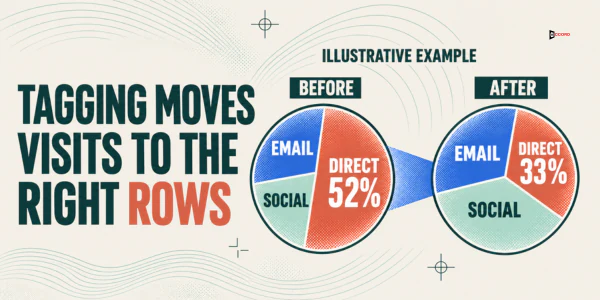
Also watch the Direct share, defined once and kept: Direct sessions divided by all sessions, for the same dates. Check it for the 30 days before you tag and for the 30 days after. Tagging does not create traffic. It moves visits from Direct to the rows where they belong.
What do you do about the visits tags cannot fix?
Some visits stay Direct however well you tag. Do not guess at them. Treat them as unknown, and add a second way to learn where people came from.
The simplest second way is one question on your contact or demo form: "How did you hear about us?" Make it a free-text box, because a fixed list tells people what to answer. Read the answers once a month and group them by hand. An answer such as "a colleague sent me your post" tells you something that no tag can. If you do not collect form answers yet, the live post on why B2B website traffic does not turn into leads shows how to check that your form and your key events work.
Keep two groups apart in your notes: visits you tagged and measured, and visits that stay Direct for reasons a tag cannot fix. Report both. "Direct: unknown, and here is why" is more useful than a guess.
How does this fit with attribution models?
Attribution is the rule that decides which touch gets credit for a lead or a deal. The live post on B2B marketing attribution models explains how to choose a model and warns that inconsistent campaign tagging changes the data before any model starts. This post covers only that first layer. Well-chosen UTM tags B2B teams apply every time give a model something clean to work on. They do not tell you which touch caused a sale.
If you count conversations each week, tags give you the source for the first row of a scorecard. Our guide to a weekly growth scorecard shows how to count people, messages and meetings without mixing them.
Imagine: one month of Direct, before and after tagging
Imagine a 12-person software company called Larkfield Payroll. Every name and number here is invented, and the numbers are not a benchmark. Larkfield sends one newsletter a month, posts on LinkedIn and sends a few messages to prospects. Until October it used no tags.
In October, GA4 showed 1,000 sessions in 30 days. Of these, 520 were Direct, 20 were Email, 40 were Organic Social and 420 came from all other channels. The Direct share was 520 divided by 1,000, or 52.0%.
In November, Larkfield followed the rules in this post. A few days before the newsletter went out, the team ran the test. Check 3 showed two rows, LinkedIn / social and linkedin / social, because two people had built links by hand. Larkfield rewrote both in lowercase and put the links in the shared sheet. Then it sent the newsletter.
In the 30 days after, GA4 showed 1,100 sessions. Direct was 363, Email was 190, Organic Social was 130 and all other channels were 417. The check on the numbers: 363 plus 190 plus 130 plus 417 equals 1,100. The Direct share was 363 divided by 1,100, or 33.0%.
The real-send check was this. The newsletter, its only email in November, reached 1,960 delivered emails, and the email program reported 240 clicks. GA4 showed 190 sessions for the campaign payroll-checklist-2026-11. The ratio was 190 divided by 240, or 79.2%, which is above the one-half starting point, so the tags passed.
Larkfield reads the result carefully. Direct fell by 157 sessions (520 minus 363). Email rose by 170 (190 minus 20) and Organic Social rose by 90 (130 minus 40). The sessions from all other channels moved by minus 3 (417 minus 420). Those changes add up to the rise of 100 in total sessions (minus 157, plus 170, plus 90, minus 3). So tagging is not the only reason Email and Social rose, because Larkfield also posted more and sent more messages in November. Larkfield cannot say how many of the 363 sessions that are still Direct are typed addresses, private shares or blockers. It adds the "How did you hear about us?" question to its form, and it reports Direct as unknown with that reason.
Frequently asked questions
Next step
If you would like a second pair of eyes on your tagging, book a 30-minute working session with the Accord team. Bring your current tagged links and one screenshot of your Traffic acquisition report, and we will check the names against the rules in this post. There is no obligation, and you can use everything in this post without us. Accord sells outbound, email, lead-generation, SEO and AEO, web and social services, so we have an interest in this subject.