
You exported 1,800 contacts, a verification tool marked most of them "valid", and you are about to press send. If a large share of those emails bounce, meaning they come back undelivered, the damage is not limited to the lost messages. Google tells senders to slow down when messages start bouncing, so a high bounce rate is a warning you want to avoid. Below are seven steps to verify B2B email list data before you send. Each step has a result to reach, called the pass line, and a fix if you miss it.
The post also answers a question that deserves a straight answer: what do Google and Yahoo themselves say about bounce rates? Neither publishes a bounce percentage on its sender pages. The bounce lines in this post are Accord's own starting points, not industry rules. Facts about Google and Yahoo are linked where they appear. Everything else is labeled as a vendor view or as our view.
What do Google and Yahoo say about bounces and complaints?
We opened both pages on 1 November 2026. Neither page shows a date of its last update, so read the wording below as what the page said that day.
Google. Its email sender guidelines describe how to deliver email to personal Gmail accounts, meaning addresses that end in @gmail.com or @googlemail.com. For all senders, the page says to keep the spam rate reported in Postmaster Tools below 0.3%. Postmaster Tools is Google's free dashboard for senders. Senders of more than 5,000 messages a day to Gmail accounts get extra requirements, such as stronger sender checks and one-click unsubscribe. The spam rate section says: "Keep spam rates reported in Postmaster Tools below 0.10% and avoid ever reaching a spam rate of 0.30% or higher."
On bounces, the same page gives advice and no percentage. It says that if messages start bouncing or being deferred, you should "reduce the sending volume until the SMTP error rate decreases." SMTP is the system mail servers use to pass messages along, and its error replies are what you see as bounces. The page also lists "Automatically unsubscribe recipients who have multiple bounced messages" and tells senders not to buy email addresses from other companies.
Yahoo. Its sender requirements and recommendations tell all senders to keep their spam rate below 0.3%. Yahoo says it calculates that rate based on mail delivered to the inbox, which is a different base from your own sent count. Its recommendations say to "Monitor hard and soft bounces as well as inactive recipients" and to "Remove invalid recipients from your list promptly." It also says not to purchase mailing lists. Like Google, Yahoo shows no bounce percentage.
Three things follow from these pages.
A bounce and a complaint are different events. A bounce means the message did not arrive. A complaint means the person received it and pressed the report-spam button. Verification helps with bounces and helps only a little with complaints, because a valid address can still belong to someone who never wanted your email.
A 2% or 3% "Google bounce limit" is not on these pages. We did not find such a number on either one. Some vendor guides that we opened name bounce lines between about 1% and 5%, and the ones that mention Google or Yahoo give no link to a page that says so. The vendors sell verification or sending tools, so read their lines as vendor views.
Your list is probably not only Gmail. A B2B list is mostly company addresses, and a company address may sit on Google, Microsoft or another host. Each host runs its own filters and may publish its own rules. In our view, the safest plan is to hold every send to the same low-bounce habits, whatever the host.
What bounce rate is too high for B2B email?
Start with plain definitions. A hard bounce is a permanent failure, such as an address that does not exist or has a typo. A soft bounce is a temporary failure, such as a full mailbox. The two behave differently, so count them apart.
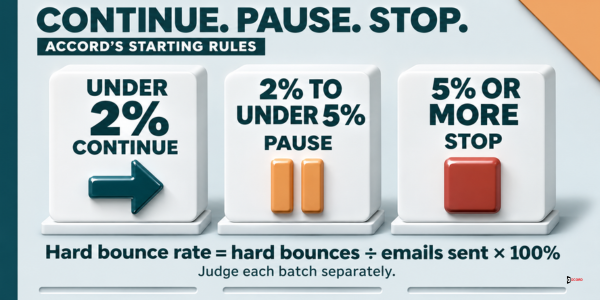
This post uses one counting rule everywhere. The bounce rate of a batch is its hard bounces divided by the emails sent in that batch. A batch of 100 emails with 2 hard bounces has a bounce rate of 2%. Soft bounces are tracked separately and do not enter this rate.
Here are the starting lines for each batch. Adjust them to your own results after a few sends.
Under 2%: continue. In a batch of 100, that means 0 or 1 hard bounce.
From 2% to under 5%: pause. In a batch of 100, that means 2, 3 or 4 hard bounces. Do not send the next batch until you know why the addresses bounced.
5% or more: stop. In a batch of 100, that means 5 or more. Do not send again until the whole list has been verified again and the source has been questioned.
Small batches make percentages jumpy. In a batch of 50, one bounce is already 2%, so use a first batch of at least 100.
Two more rules cover the soft side. If the same address soft-bounces on two sends in a row, put it on hold. Google's page speaks of "multiple bounced messages", and two in a row is our reading of "multiple". If many soft bounces come from one company, the cause may be that company's mail system, so wait before retrying.
What can email verification check, and what can it not?
Email verification, also called email validation, is a service that checks addresses without sending a message to them. Tool vendors describe it as a few layers. First, does the address look right? Second, does its domain exist and accept mail? Third, does the receiving mail server say this mailbox exists? The tool then gives each address a status. The names differ from tool to tool, so read your tool's own list. These are the common ones.
| Status | What it means | What to do |
|---|---|---|
| Valid | The server said the mailbox exists | Keep for the send |
| Invalid | The mailbox does not exist, the address is mistyped, or the domain cannot receive mail | Remove |
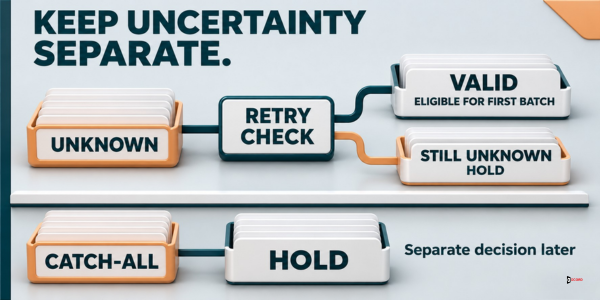
| Catch-all | The server accepts mail for any address at its domain, so the tool cannot confirm this mailbox | Hold for step 5 |
| Unknown | The tool got no clear answer, for example a timeout or a refusal to answer | Hold for step 5 |
| Flagged (disposable, shared mailbox such as info@, or possible spam trap) | The tool suspects the address is temporary, read by many people, or a trap | Remove, unless you have a written reason to keep it |
A spam trap is an address that looks real but exists to catch senders who send to poor lists. A flag from a tool is a guess, not proof, and in our view no tool can see every trap. That is one reason to avoid bought lists, which both Google and Yahoo advise against.
Verification has limits, and you should know them before you trust a green "valid".
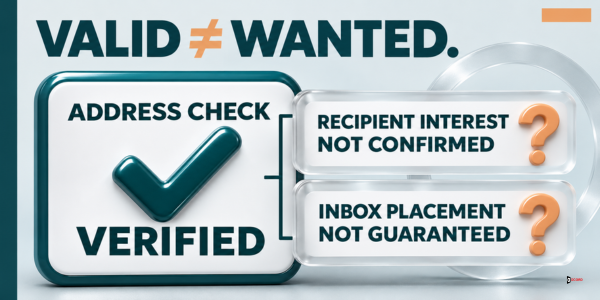
It cannot tell you whether the person wants your email. A valid mailbox can still produce a complaint. Match the list against your do-not-contact records, as the CRM data quality checklist describes, before you send.
It cannot tell you whether the person still holds the role. A mailbox can stay open after someone changes jobs, and the email then reaches a person who does not match your message.
It cannot settle catch-all and unknown results. The tool can only say that it could not tell. A common reason is greylisting, where a server turns away the first attempt from a new sender and accepts a later one.
It cannot tell you where the email will land. Verification checks the address. It does not check your sender setup, your sending volume or your message. Our guide to improving cold email deliverability covers those in order.
It is a snapshot. An address that is valid today can fail next month. Vendors estimate how fast lists go stale, and one puts it at about a quarter of a list in a year. That is a vendor estimate, so use it only as a reason to check old results again.
How do you verify B2B email list data step by step?
Each step below gives the result to reach (the pass line) and the fix if you miss it. Do the steps in order, because a later step cannot repair an earlier one. The CRM checklist works on a random sample of 100 records and decides whether a list fits the buyer. These seven steps work on the whole file and decide whether the addresses are safe to send to.
Step 1: Write down where each address came from and when
Add two columns to your file: source and date last confirmed. A source is the place the address came from, such as a form, an event, a research tool or a referral. The date is the day someone last confirmed it.
Pass line: every row has both. Fix: remove rows with no source, or find the source and fill it in. A row nobody can explain is a row you cannot defend if a recipient asks how you found them. Our guide to building a B2B lead list covers good sources. If part of the file came from a bought list, treat that part as high risk. Google and Yahoo both advise against buying addresses, so take that part out or hold it for a separate decision.
Step 2: Tidy the file before the tool sees it
Fix what a person can see in a minute. Look for blank cells, spaces, a missing @, obvious typos in the domain such as "gmial.com", the same person twice, and shared mailboxes such as info@ or sales@. Sort by the email column, then again by name and company, and the repeats appear.
Pass line: no blanks or visible typos, and no repeated person. Fix: correct what you can check, merge or delete repeats and remove shared mailboxes unless you have decided in writing that they belong. Doing this first can also cost less, because some tools charge for each address checked, and you avoid paying for rows you would remove anyway.
Step 3: Test the verification tool on 20 addresses you know
A tool can be wrong in two directions. It can call a bad address valid, which leads to bounces, or call a good address invalid, which loses leads. Test it before you trust it on 1,800 rows.
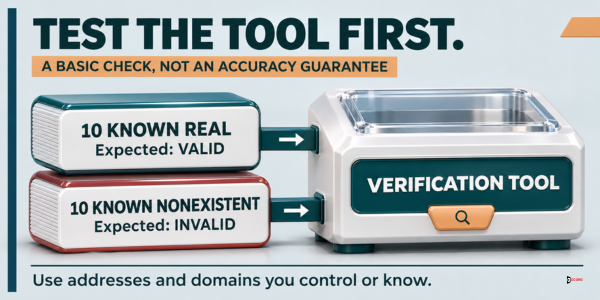
Build a test file of 20 addresses. Ten are real addresses whose owners you know, such as colleagues, partners or your own spare mailboxes. Ten are made up at domains you own, for example [email protected], which you know do not exist. Because you only ask the tool to check them and do not email them, no stranger is contacted.
Pass line: all 10 real addresses come back valid and all 10 made-up addresses come back invalid. Fix: if a made-up address comes back valid, your domain may be a catch-all, or the tool is too generous. Try a made-up address at another domain you control, and read the tool's notes on how it handles such domains. If a real address comes back invalid, ask the vendor why. If the errors continue, test a second tool, or treat the first tool's "valid" as weaker evidence and keep the batches in step 6 small.
Step 4: Run the file and sort by status
Upload the tidied file and download the result. Count the rows in each status from the table. The counts must add up to the number of rows you uploaded, which shows that no rows were lost. Keep the date of the run in your file.
Pass line: at least 95 of every 100 rows come back valid. That matches the CRM checklist's pass line for its verification check. Fix: if fewer than 95 are valid, the send is still possible, because you will send only to valid rows. But a lower share points to a weak source or an old list, so ask the source for a refresh or find a better one. A source that gave you 10 invalid rows in 100 this time may do the same next time.
Send only the valid rows to the first batch. Move invalid rows to your suppression list, the list of people and addresses you must not contact again, so nobody adds them back by accident.
Step 5: Decide what to do with the grey group
The grey group is every catch-all and unknown row. It is small in a good list, but it needs a rule written down before it tempts you. In our view, three choices are reasonable.
Hold them back. The strictest choice, and the one to use for your first sends. Nothing in the grey group is emailed until the valid rows have been sent safely.
Retry unknown rows later. An unknown result can come from a temporary problem, such as a slow server or greylisting. Run only the unknown rows again after a day or two. Rows that turn valid join the send list, and rows that stay unknown move to the held group.
Send catch-all rows in their own small batch. Only do this after the valid rows have bounced under 2%, and judge the batch on its own. A catch-all row can bounce because the tool cannot see the mailbox, so a separate batch keeps its bounces from hiding in the good result.
Pass line: the rule is written, and no grey row is in the first batch. Fix: if you cannot choose, hold every grey row.
Step 6: Send a first batch of 100 and read every bounce
Pick a random 100 from the valid rows, so the batch is not just the top of the file. In a spreadsheet, add a column with =RAND(), sort by it and take the first 100.
Send the batch, wait for the bounces, and calculate the batch's bounce rate with the rule above. Open the bounce messages and read the reason on each. The message usually states it, such as an address that does not exist or a full mailbox.
Pass line: under 2%, which is 0 or 1 hard bounce in 100, and no sign that one company causes several bounces. Fix: at 2% to under 5%, pause. Add every hard-bounced address to the suppression list the same day, group the bounces by company, and look for a pattern. Hold the unsent rows at any company that bounced. Verify those rows again, then send a new batch of at least 100. At 5% or more, stop, verify the whole file again with a second tool if you can, and question the source before any further send.
Step 7: Increase in steps, keep watching, and verify again on a schedule
If the first batch passes, send a larger one, for example 200, and judge each batch on its own. An average over several batches can hide one bad batch. Keep growing the size only while each batch passes.
If you send to Gmail addresses, set up Postmaster Tools for your sending domain and read the spam rate against the Google lines quoted earlier in this post. For Yahoo, its page points to a complaint feedback loop, a service that passes you a copy of each spam report on mail you send there. The page says the loop works once you sign your emails with DKIM, a method of marking mail as sent by your domain.
Pass line: every batch under 2% hard bounces, and a verification result no older than 30 days on the day of the send. The 30 days is a starting point from our CRM checklist, not an outside rule. Fix: if a result is older than 30 days, verify the rows again. If a batch fails, apply the pause or stop rule from the section on bounce rates, and cut the next batch size in half when you restart.
Imagine: an 1,800-row file, seven steps and a pause
Imagine a five-person company called Merrowbank Analytics. This example is invented, including every name and number, and the numbers are not a benchmark. Merrowbank has a file of 1,800 contacts from two tool exports and a conference list.
Step 1. One hundred rows have no source, and nobody can find one. They are removed, leaving 1,800 minus 100, which is 1,700 rows.
Step 2. The tidy-up finds 60 repeated people, 40 shared mailboxes and 20 typos. That is 60 plus 40 plus 20, or 120 rows removed. The file now has 1,700 minus 120, which is 1,580 rows.
Step 3. The tester builds the 20-address test. The tool marks all 10 real addresses valid and all 10 made-up addresses invalid. It passes, with 20 of 20 correct.
Step 4. The tool checks 1,580 rows. It returns 1,422 valid, 80 invalid, 48 catch-all and 30 unknown. Those add to 1,580. The valid share is 1,422 divided by 1,580, or 90.0%, which misses the 95% pass line. Invalid rows are 5.1%, catch-all 3.0% and unknown 1.9%. The send list is 1,422 valid rows, and the 80 invalid rows go to the suppression list. The conference list looks like the weak source, so Merrowbank asks the organizer for a refreshed file.
Step 5. The 48 catch-all and 30 unknown rows, 78 in all, are held back. Merrowbank plans to retry the unknown rows after two days.
Step 6. A random batch of 100 goes out. Two hard bounces come back, a rate of 2 divided by 100, or 2.0%. That sits on the pause line. Both addresses belong to one company, and the bounce messages say the mailboxes do not exist. The company may have changed mail systems after the check was run. Merrowbank puts both addresses on the suppression list and sets aside the 5 other contacts at that company until its mail system is checked. After the batch, 1,422 minus 100 is 1,322 valid rows unsent, and 1,322 minus 5 leaves 1,317.
Step 7. Merrowbank sends a second batch of 200 from the 1,317. One hard bounce comes back, which is 1 divided by 200, or 0.5%. That passes. The remaining unsent list is 1,317 minus 200, which is 1,117 rows, and the next batch gets the same test. Merrowbank does not average the 2.0% and the 0.5%. Each batch stands alone, as the rule says.
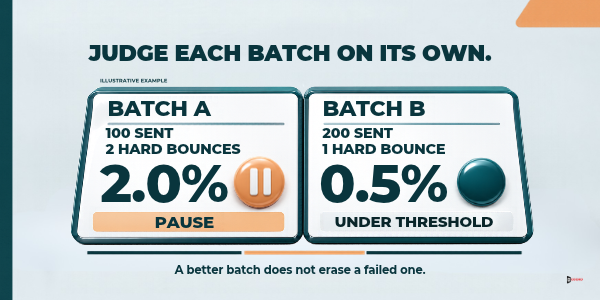
The lesson is not in the numbers. The tool said "valid" and two addresses still bounced, which is why the first batch is small.
Frequently asked questions
What is a good bounce rate for a B2B cold email campaign?
Google and Yahoo do not publish a bounce percentage on their sender pages. Accord's starting point is a hard bounce rate under 2% in each batch, where the rate is hard bounces divided by emails sent in the batch. Treat it as a first rule and adjust it with your own results.
Does Google set a bounce rate limit?
Google's email sender guidelines name a spam rate limit, not a bounce limit. They say to keep the spam rate reported in Postmaster Tools under 0.10% and avoid ever reaching 0.30% or higher. On bounces, Google only says to reduce sending volume until the error rate decreases, and it tells senders not to buy addresses.
Can I verify B2B email list data for free?
That depends on the tool, so check its current pricing page. A few credits or a trial are enough for the 20-address test. A full list may cost money per address, depending on the tool, so tidy the file first.
Should I email catch-all addresses?
Not in your first sends. A catch-all server accepts mail for any address at its domain, so a tool cannot confirm that the mailbox exists. Hold those rows, then send them in a small separate batch once your valid rows have bounced under 2%.
How often should I verify my list again?
Accord's starting point is to verify again when a result is older than 30 days on the day you plan to send. Lists go stale as people change jobs and companies change mail systems. If you reuse a list every week, verify new rows when they arrive and the whole list each month.
What should I do with an address that bounces?
Add a hard-bounced address to your suppression list the same day and do not retry it. For a soft bounce, such as a full mailbox, try again once on the next send. If the same address soft-bounces on two sends in a row, put it on hold.
Is verification enough to protect my sending domain?
No. It lowers the bounce risk, but it does not cover complaints, sender setup, volume or the message. Google and Yahoo both give a spam rate limit of 0.3%, and a valid address can still produce a complaint, so match your list against your do-not-contact records as well.
My data provider says its list is already verified. Do I still need to check it?
Yes. Treat that statement as a vendor claim, and ask when the check was done and by what method. Then run the 20-address test and the full steps on your own file, because you will pay for the bounces and not the provider.
Next step
If you would like a second pair of eyes on your own list before a send, book a 30-minute working session with the Accord team. Bring the file, or a sample of it, and your verification results, and we will go through the seven steps together. There is no obligation, and you can use everything in this post without us. Accord sells outbound, email, lead-generation, SEO and answer-engine optimization, web and social services, so we have an interest in this subject. This post does not tell you which verification tool to buy, and the steps work with any tool that returns the statuses in the table.